
User creation/modification
In some cases, the customer prefers to block the semi-automatic menu to force the user to use Fox4Work and create a user for whom this right will be activated.
Enable the User Management option
First, check whether access to the User menu is enabled.
To do this, use the master password and go to Administration. If the option is not enabled, the User menu will be grayed out and inaccessible.
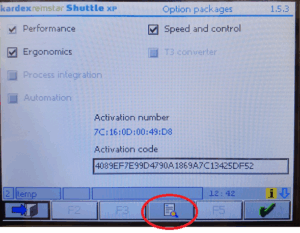
You will then arrive at this menu, where you must check the User management box.
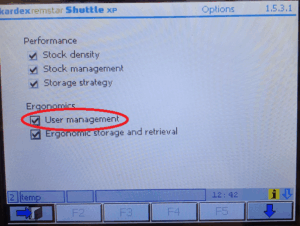
Access to the User Menu is then enabled.
User Creation
Once in the User menu, you can either create a new user or modify an existing user.
To do this, you need to know the index number, bearing in mind that 0 = Default (000) and 1 = Service (752).
For a new user, enter index 2 (or another number if 2 is already taken).
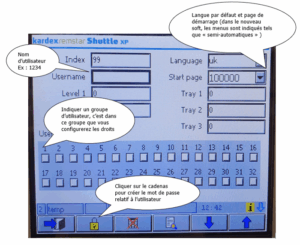
Please note that if you want to keep user 000 by allowing only automatic mode, you must specify index 0, check box 1, and uncheck box 31.
If your new user takes the default rights, simply check box 31.
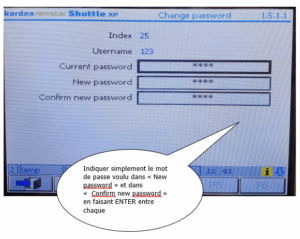
Configuring rights
To modify the rights of a group (group 1 in our case), click on F4 (pencil or magnifying glass).
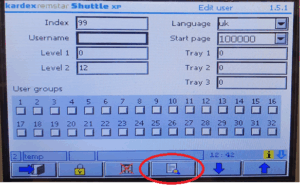
This page appears, simply press F4 to go to the next page:
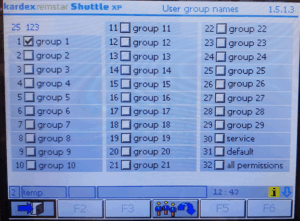
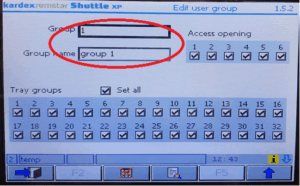
You will then arrive at this menu, where you must enter the number of the group whose rights you want to change. Then press F4 again.
The list of rights appears:
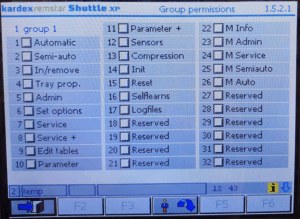
For example, to access only automatic mode, check box 1 (Automatic) and box 26 (M Auto).
Each box corresponds to access to the menus.
To access the main page menu (pen and paper, automatic, semi-automatic, and administration), you must check two boxes (1 and 26 for Auto, 2 and 25 for Semi-auto, 5 and 23 for Admin).
To access the Service and Information menu, you must check boxes 22 or 24.
PS: In the new software, box 26 is called “Display automatic.”
Once the rights have been checked, press F4 again to confirm.
Verification
To verify that the correct permissions are enabled, return to the main menu. Click on the key to change the user.
Test the new user and/or verify the default user permissions.
If everything is OK, you can use the machine.